

 main
main
Using the dbUnit Dataset Editor
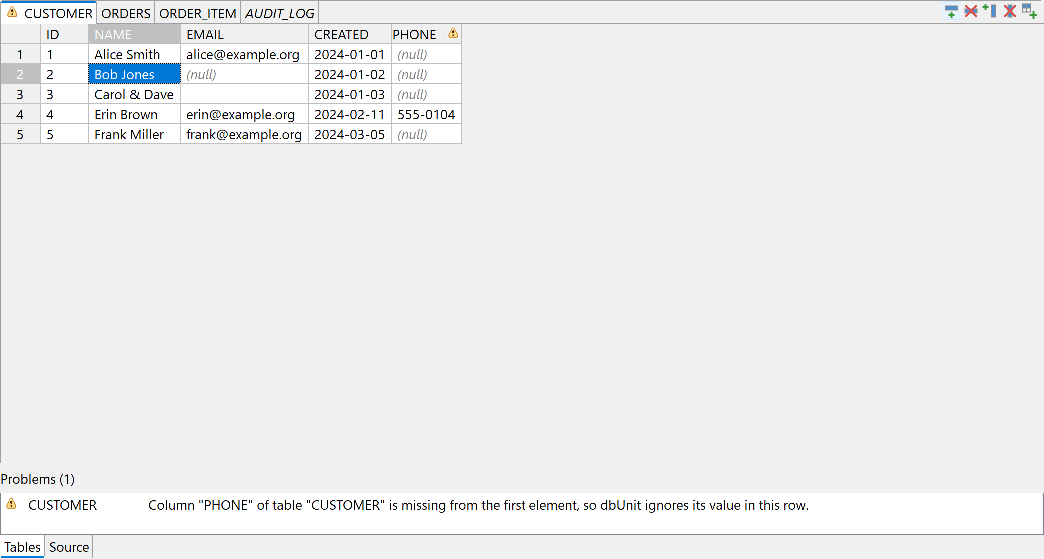
The dbUnit Dataset Editor edits dbUnit dataset files like a spreadsheet. It has two pages that always show the same content: the Tables page, a grid with one sheet per table, and the Source page, the text of the dataset. Every change on the Tables page is written into the text with the smallest possible edit, so comments, formatting, and the rest of the file stay as they are, and a version-control diff shows only what you changed.
The plugin currently supports the dbUnit flat XML format; other dataset formats are planned.
Opening Dataset Files
Eclipse recognizes a file as a dbUnit Flat XML Dataset when its extension is .xml and its root element is dataset,
and opens it in the dbUnit Dataset Editor.
Files in dbUnit’s other XML format, whose dataset element contains table elements, are not flat XML datasets
and keep opening in your usual XML editor.
The editor opens on the Tables page. When the XML has an error, it opens on the Source page instead, so you can fix the error first.
To create a dataset, use File > New > Other… > dbUnit > dbUnit Flat XML Dataset.
The wizard creates a file with an empty dataset, dataset.xml by default, and opens it:
<?xml version="1.0" encoding="UTF-8"?>
<dataset>
</dataset>
An empty file has no dataset root element, so Eclipse no longer recognizes it as a dataset file; open it
with Open With > Other… > dbUnit Dataset Editor instead of double-clicking it, since the editor is
bound only to the flat XML content type, which an empty file does not have.
Its Tables page then offers Create Empty Dataset, which writes the same content.
The Tables Page
Each table of the dataset is a sheet tab, in the order in which the tables first appear in the file. When the dataset has no tables, the page shows a message and an Add Table… button instead, which opens the same dialog as the toolbar’s Add Table.
- A tab’s tooltip shows the number of rows and columns.
- A table without rows has its name in italics.
- Showing a table’s tab for the first time selects its first cell, so the arrow keys, F2, and the grid commands work right away; a table without rows or columns starts with nothing selected.
- A table with problems shows a warning or error icon (see Problems).
The grid shows one row per row element and one column per attribute. Row numbers count the rows of the table from 1. Rows are always in the order of the file, because dbUnit inserts them in that order; the editor never sorts them.
A table may appear in several places in the file.
dbUnit, and the editor, treat all of its elements as one table, with the rows in the order of the file.
dbUnit also treats table names that differ only in case, such as USERS and users, as one table.
If your tests make dbUnit’s table names case-sensitive, change the preferences to match.
The toolbar at the right of the tabs holds Insert Row Below, Delete Rows, Add Column, Delete Column, and Add Table. Right-click a cell, a row number, a column header, or a tab for the commands that apply there.
Below the grid, the Problems section lists what dbUnit would ignore or reject (see Problems). It is hidden when there are none.
When the XML has an error, a banner at the top shows the error and a Show in Source link, and the grid is read-only until you fix the error on the Source page. When the file itself is read-only, for example a file in a JAR or an older revision from the history, the banner says so and the grid is read-only. When the file becomes read-only or writable while the editor is open, the banner and the grid follow the next time you return to the editor. A read-only grid still lets you select and copy cells, and Show in Source (F3) still works.
Editing Cells
Select a cell and start typing to replace its value, or press F2 or double-click to edit the value in place. Typing an emoji, or another character that needs two UTF-16 units, does not start the edit: open the cell first, then type it. Enter saves the value and moves down, Tab and Shift+Tab save it and move right and left, Up and Down save it and move up and down, and Escape discards the change.
If the table gains or loses rows or columns while you edit a cell, for example because the file was reloaded after it changed on disk, the editor discards the edit instead of writing it into a cell that may be another one now, and the status line says so. This closes the dialog of Edit Cell in Dialog too.
NULL and Empty Strings
In a flat XML dataset, a column’s value in a row is NULL when the row element has no attribute for the column,
and the empty string when the attribute is present but empty (NAME="").
The editor keeps the two apart:
- A NULL cell shows
(null)in gray italics. You can choose another text in the preferences. - An empty string shows as an empty cell.
- A line break in a value shows as
⏎.
Editing a NULL cell and saving it without typing anything keeps it NULL. Clearing the text of a cell with a value makes it an empty string. To make cells NULL, select them and press Delete, or use Set to NULL; Set to Empty String makes them empty strings.
A column that the DTD gives a default value is different: dbUnit loads that default, not NULL, for a row without the attribute. The grid shows what dbUnit loads, so a cell without the attribute shows the default in italics, and the header tooltip of the column names it. Such a cell cannot be NULL. Delete and Set to NULL remove the attribute, so the cell shows the default again, and the status line says so. To override the default, write another value, or the empty string with Set to Empty String. Saving a cell that shows a default, without changing its text, does not write the attribute.
A row cannot have every value NULL, because an element without attributes is not a row in dbUnit (unless the DTD gives a column a default value, see DTDs). The editor rejects a change that would leave a row without values and suggests Delete Rows instead, and a new row starts with an empty string in its first column. Delete with whole rows selected deletes the rows, as Delete Rows does, instead of making their cells NULL.
Without a DTD, a cell of a table’s first row cannot be NULL while another row has a value in its column, because dbUnit takes a table’s columns from the first row and would then ignore that column in every other row (see Rows, Columns, and Tables).
To enter a value with line breaks, use Edit Cell in Dialog (Shift+F2). Characters that XML does not allow, such as most control characters, are rejected. A dialog then lets you change the value or discard it. Until you do, the cell stays in edit mode, and neither saving nor switching to the Source page goes ahead.
The editor escapes values as dbUnit’s own writer does, for example &, <, and 
 for a line break.
A character that the file’s encoding cannot store, such as € in an ISO-8859-1 file,
is written as a character reference, €.
The file’s encoding is the one that the XML declaration names as it is now, also before you save a change of it,
unless the file has an encoding of its own in its Eclipse properties, which is the one that counts then.
Undo and Redo
Edit > Undo and Edit > Redo work on both pages and share one history, so you can undo a grid change on the Source page and the other way around. Every command is one undo step, however many cells it changes; so is a paste.
Revert
File > Revert works on both pages. It discards every change since the last save, including a value that you are still typing into a cell.
Changes Made Outside Eclipse
When a file changes outside Eclipse, for example in a version control checkout, an editor with unsaved changes asks, whichever page is shown, whether to replace its contents with the file’s. Replace editor content discards the unsaved changes on both pages, and Ignore file change keeps them. An editor without unsaved changes loads the change by itself when Eclipse refreshes the file, which it does automatically for a file in the workspace unless Refresh using native hooks or polling is off in Preferences > General > Workspace. When the file is not refreshed, as for a file outside the workspace, the editor asks as well.
Rows, Columns, and Tables
| Command | Key | Where |
|---|---|---|
| Insert Row Above | Ctrl+Shift+Enter | Cell and row number menus |
| Insert Row Below | Ctrl+Enter | Cell and row number menus, toolbar |
| Duplicate Rows | Ctrl+Alt+Down | Cell and row number menus |
| Delete Rows | Ctrl+Delete | Cell and row number menus, toolbar |
| Move Rows Up | Alt+Up | Cell and row number menus |
| Move Rows Down | Alt+Down | Cell and row number menus |
| Add Column… | Column header menu, toolbar | |
| Rename Column… | Column header menu | |
| Delete Column | Column header menu, toolbar | |
| Add Table… | Tab menu, toolbar | |
| Rename Table… | Tab menu | |
| Delete Table | Tab menu |
On macOS, use Command instead of Ctrl and Option instead of Alt. You can change the keys in Preferences > General > Keys, where the commands are in the dbUnit Dataset category.
- Rows
- The row commands act on every row that has a selected cell. Duplicate Rows inserts copies of the rows after the last of them. Move Rows Up and Move Rows Down move one block of adjacent rows past its neighbor. When Delete Rows takes every row of a table, the columns that only its rows gave it stay as pending columns (see below), so that you can insert rows again; the columns that the DTD declares stay anyway.
- Columns
- A flat XML file stores a column only as attributes of rows,
so a column you add has no place in the file until a row has a value for it.
Until then it is a pending column, with its name in italics and a tooltip that says so;
give it a value in at least one row to keep it.
Rename Column renames the attribute in every row, and Delete Column removes it from every row,
after asking for confirmation.
Renaming or deleting a column the DTD declares warns that the DTD must be updated too;
renaming a declared column with no rows yet is rejected, since there is nothing in the file to rename.
When a row spells a column in two ways, such as
NAMEandname, Delete Column removes both attributes, but Rename Column and editing a cell of that column are rejected for the row, because both attributes would get the same name or the same value; remove one of the two on the Source page first. - Tables
- Add Table asks for the table name and, optionally, comma-separated column names,
and adds an empty element for the table at the end of the dataset, such as
<ORDERS/>. A table name must be a valid XML name, must not already be used by another table according to the case-sensitivity preference, and cannot bedataset, which is reserved for the root element. Column names must each be a valid XML name and not repeat another, case-insensitively, the same rules Add Column applies. An XML name is what the XML parser of the Java runtime, which dbUnit loads a dataset with, takes for one: it follows the fourth edition of XML 1.0, so it holds letters, digits, and a few marks, and no character beyond U+FFFF and no symbol such as an arrow, which later editions of XML allow. dbUnit treats such an element as an empty table, which operations such asDELETE_ALLandCLEAN_INSERTstill process. The first row that you insert into such a table replaces the element, except for what the element holds, such as a comment, which stays. Rename Table renames every element of the table. The table keeps its tab, its column widths, and its selection when its name changes and its columns and rows do not, whether you rename it with this command, undo or redo a rename, or rename its elements on the Source page. When the DOCTYPE has an internal subset that declares the table, the table is renamed there too, in itsELEMENTandATTLISTdeclarations and in the content model of thedatasetelement, as part of the same undo step, so dbUnit still finds the table in the DTD. The editor does not change a DTD file, so when one declares the table, the rename dialog warns that the file needs the new name too. Delete Table removes every element of the table, after asking for confirmation. Renaming or deleting a table that exists only in the DTD is rejected, since there is nothing in the file to change.
When the dataset has a DTD, dbUnit takes the tables and columns from the DTD, so update the DTD too (see DTDs); the editor changes a DTD only to rename a table in an internal subset.
Without a DTD, dbUnit takes a table’s columns from the attributes of the table’s first row, and ignores a column that only later rows have, unless your tests enable column sensing (see Problems). So the editor keeps the columns of the first row on the first row. Insert Row Above the first row gives the new row an empty string in every column of the old first row, and the status line says so. The editor rejects a change that would take a column off the first row while another row has a value for it: setting a cell of the first row to NULL, deleting the first row, or moving a row to the top when the row that becomes the first row lacks the column. Give that row a value for the column first (an empty string is enough), declare the columns in a DTD, or, if your tests enable column sensing, select the column sensing preference, which lifts the rule.
Copy, Cut, and Paste
The clipboard holds cells as tab-separated text, so you can copy cells to and from spreadsheet applications such as Microsoft Excel and LibreOffice Calc.
- Copy copies the selected cells. Rows, columns, or cells that you select separately with Ctrl copy next to each other, without the gaps between them, as they do in a spreadsheet. That needs the same selected columns in every selected row; for any other selection, Copy does nothing, and the status line says so. A cell that shows a DTD default copies the default.
- Cut copies the cells in the same way and then makes them NULL. When whole rows are selected, Cut deletes the rows instead, so you can move rows by cutting and pasting them.
- Paste starts at the top-left selected cell, or at column 0 of a table with no rows yet. A single value pasted into several selected cells fills all of them. Values beyond the table’s last column are ignored, and the status line says how many columns were; rows beyond the table’s last row are added as new rows. A row to add that has no value, such as a blank line, is skipped, because a row needs at least one value; the status line says how many rows were. Empty fields become NULL. A paste is one undo step, and the pasted cells are selected afterwards.
- Fill Down (Ctrl+D) copies the top selected value of each column into the selected cells below it. With a single row selected, it copies the values of the row above.
While you edit a cell, the clipboard keys act on the text of the cell.
The Source Page
The Source page shows the XML text with syntax coloring. You can change the colors in Preferences > General > Appearance > Colors and Fonts, category dbUnit Dataset Editor; the dark theme has its own colors.
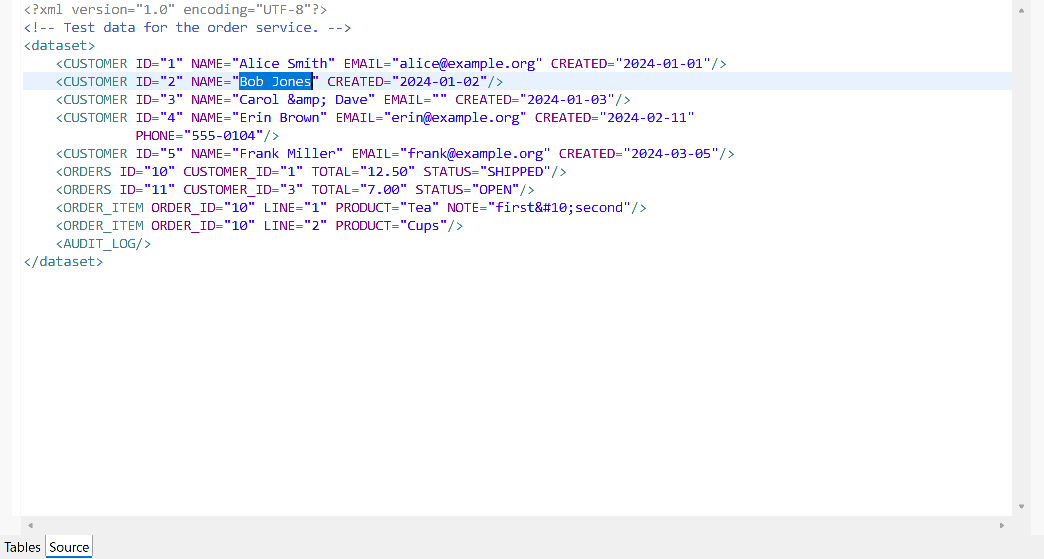
Switching pages keeps your place: the value of the selected cell (or, for a NULL cell, the name of its element) is selected in the XML text, and when you switch back, the cell at the text cursor is selected. Show in Source (F3) switches to the Source page with the selected cell’s value selected. So does anything else that selects text in the file, such as a search result or a link in the Console.
File > Print prints the XML text; the Tables page has nothing to print.
While the Source page is shown, the status line shows the line and column of the text cursor, the input mode (insert or overwrite), and whether the file is writable.
DTDs
A dataset may declare its tables and columns in a DTD, in the DOCTYPE itself or in a separate file:
<?xml version="1.0" encoding="UTF-8"?>
<!DOCTYPE dataset SYSTEM "dataset.dtd">
<dataset>
  <USERS ID="1" NAME="Alice"/>
</dataset>
When a dataset has a DOCTYPE, dbUnit reads its tables and columns from the DTD, and the editor does the same:
- The tables are the elements that the content model of the root element lists, in that order.
dbUnit takes the name of the root element from the DOCTYPE,
datasetin the example, and so does the editor. - A table’s columns are the attributes of its
ATTLIST, in declared order, followed by any other columns the rows use. - An attribute can have a default value (
STATUS CDATA "ACTIVE") or a fixed value (STATUS CDATA #FIXED "ACTIVE"). dbUnit loads it for a row without the attribute, and the editor shows it in italics (see NULL and Empty Strings). A row that writes the attribute keeps its own value. When the internal subset and an external DTD both declare an attribute, the internal subset’s declaration is binding, as in XML. When both declare the content model of the root element, the external DTD’s is used, because dbUnit takes the last declaration of the root element. In such a table, an element without attributes, such as<USERS/>, is a row of default values for dbUnit, and the editor shows it as a row; Delete Rows then removes every element of the deleted rows, and the DTD keeps the table. - Tables the DTD lists but the file does not contain appear as tabs with their names in italics;
their tooltip says Declared in the DTD; no rows.
dbUnit 3.5.0 and later load such a table as an empty table, so operations such as
CLEAN_INSERTclear it (see dbUnit Versions). - The header tooltip of a declared column without values says Declared in the DTD; no values yet.
The editor reads a DTD file whose system identifier is a path relative to the dataset file’s
location on disk, an absolute path in the platform’s own syntax such as C:\dtds\dataset.dtd or
/opt/dtds/dataset.dtd, or a file: URI.
A relative path resolves the same way dbUnit’s own parser resolves it, so it can climb outside the project.
As in that parser, a space or another character that a URI cannot hold is escaped, and on Windows a backslash is a slash,
so test data/dataset.dtd and dtd\dataset.dtd work.
It never reads a DTD from the network, such as an http: URL or, on Windows, a network share
(\\host\share\dataset.dtd, //host/share/dataset.dtd, or a file: URI that names a host);
it then reports that the DTD could not be read, and skips the checks that need the DTD.
When you edit the DTD file, the editor reads it again the next time you activate the editor.
Parameter entities and conditional sections in a DTD are not supported and are ignored.
When the content model of the dataset element refers to a parameter entity, which may list the tables,
the editor takes every element that the DTD declares as a table, in the order of the declarations.
Problems
dbUnit silently ignores some content of a flat XML dataset, and fails to load some other content. The editor warns about both. It follows how dbUnit 3.5.0 and later read a dataset; dbUnit Versions lists where earlier versions differ. It shows problems as icons on the sheet tabs and column headers, with the messages in the column header tooltips, and lists them all in the Problems section below the grid. Double-click a problem there to select its cell or column, or, when it belongs to no cell or column, to show its text on the Source page.
| Problem | What to do |
|---|---|
The XML has an error, such as a missing quote, a root element other than dataset,
an element inside a row element, an entity other than &, <, >, ", and '
in an attribute value, an & in text that does not start a reference, ]]> in text,
a reference in text to an entity that no DTD can declare,
a character that XML 1.0 does not allow in text, a comment, or a processing instruction,
-- in a comment, an XML declaration (<?xml …?>) that is not at the very start of the file,
or a table or column name with a character that the XML parser of the Java runtime does not take in names.
The grid is read-only. |
Fix the XML on the Source page; Show in Source on the banner takes you to the error. |
| Column … is missing from the first element, so dbUnit ignores its value in this row. Without a DTD, dbUnit takes a table’s columns from the table’s first row element and ignores other columns. | Give the table’s first row element that attribute, even an empty one;
or declare the columns in a DTD;
or, if your tests enable dbUnit’s column sensing (FlatXmlDataSetBuilder.setColumnSensing(true)),
select the column sensing preference. |
| The first element of table … has no attributes, so dbUnit ignores every column of its later rows. | Remove the empty element or give it the table’s columns, or use column sensing as above. |
| Table … is also spelled … dbUnit treats the spellings as one table. | Use one spelling, or select case-sensitive table names in the preferences if your tests use them. |
| Column … of table … is also spelled … dbUnit treats the spellings as one column. | Use one spelling. |
| Attribute … repeats an earlier attribute that differs only in case; its value wins. | Remove one of the two attributes on the Source page. |
| Table … is not declared in the DTD, so dbUnit fails to load the dataset. | Add the table to the content model of the dataset element in the DTD, or remove the table. |
| Column … of table … is not declared in the DTD, so dbUnit ignores its values, or, with column sensing, fails to load the dataset. | Add the column to the table’s ATTLIST in the DTD, or delete the column. |
| The DTD content model names …, which the DTD does not declare, so dbUnit fails to load the dataset. | Declare the element with ELEMENT or ATTLIST in the DTD, or remove it from the content model. |
| The DTD declares the dataset element as EMPTY, so dbUnit fails to load the dataset. | List the tables in the content model of the dataset element, or use ANY. |
| The DTD lists table … and table …, which dbUnit takes for one table, so it fails to load the dataset. dbUnit ignores the letter case of the tables of a DTD, even when table names are case-sensitive. | Keep one spelling of the table in the DTD. |
| The DOCTYPE’s external DTD could not be read. The editor skips the checks that need the DTD. | Check the DOCTYPE’s system identifier; the editor reads only local files (see DTDs). |
| Text content is ignored. (information) dbUnit ignores text between elements. | Remove the text, or turn it into a comment. |
| This empty element is redundant; table … already has rows. (information) | Remove the element; a table needs an empty element only when it has no rows. |
| The default value of attribute … of element … is ignored: … (information) The default value uses an entity reference or is not valid, so the editor cannot decode it, and the cells that dbUnit gives that default show NULL. | Write the default value with the five predefined entities and character references only. |
| Parameter entity references are ignored., and the same for parameter entity declarations and conditional sections in a DTD (information). | Nothing, unless the DTD declares tables or columns through them; the editor then does not know those tables and columns. |
dbUnit Versions
The editor follows dbUnit 3.5.0 and later. Earlier releases read a flat XML dataset differently in these ways:
| Release | From this release on | Before this release |
|---|---|---|
| 2.7.0 | dbUnit matches an attribute to a column without regard to letter case, so a row can spell a column differently from the table’s first row or the DTD. Of two attributes of one row that differ only in case, the last one wins. | dbUnit reads only the attribute spelled exactly like the column, so a row that spells the column differently loads NULL for it. Of two attributes of one row that differ only in case, the one spelled like the column wins. |
| 2.7.0 | With column sensing, a column that the DTD does not declare makes dbUnit fail to load the dataset. | dbUnit ignores the values of such a column, with or without column sensing. |
| 3.5.0 | A table that the DTD declares but the file has no element for becomes an empty table of the dataset,
so operations such as CLEAN_INSERT clear it. |
dbUnit leaves such a table out of the dataset, so those operations skip it. |
Preferences
Window > Preferences > dbUnit Dataset Editor has three settings. Open editors apply a change immediately.
- Text shown for NULL cells
- How the grid shows NULL values;
(null)by default. It cannot be blank, so that NULL cells look different from empty strings. - Validate as if the tests enable dbUnit column sensing
- Select this when your tests load datasets with
FlatXmlDataSetBuilder.setColumnSensing(true). dbUnit then reads columns from all rows, not only from each table’s first row, so the editor stops warning about columns missing from the first row, stops keeping the columns of the first row when you insert, delete, or move rows or set cells to NULL, and warns that columns missing from a DTD make dbUnit fail. - Treat table names as case-sensitive, like dbUnit’s caseSensitiveTableNames
- Select this when your tests load datasets with case-sensitive table names. Tables whose names differ only in case then become separate sheets.
Keyboard Reference
| Key | In the grid | While editing a cell |
|---|---|---|
| Arrow keys | Move the selection | Move the text cursor; Up and Down save the value and move |
| Shift+Arrow keys | Extend the selection | Select text |
| Tab, Shift+Tab | Move right, left | Save the value and move right, left |
| Enter | Move down | Save the value and move down |
| Escape | Discard the change | |
| F2 | Edit the selected cell | |
| Shift+F2 | Edit the selected cell in a dialog | |
| Any character | Start editing, replacing the value | Type |
| Delete | Make the selected cells NULL, or delete the rows when whole rows are selected | Delete a character |
| Ctrl+C, Ctrl+X, Ctrl+V | Copy, cut, paste cells | Copy, cut, paste text |
| Ctrl+A | Select all cells | Select all text |
| Ctrl+D | Fill down | |
| F3 | Show in Source |
On macOS, use Command instead of Ctrl.
While a cell is being edited, the commands of the grid are off, so that their keys, such as Ctrl+Delete, reach the cell editor.
With the mouse, click to select a cell, Shift+click to extend the selection, Ctrl+click to add a cell, and drag to select a range. Click a row number or a column header to select the row or column. Drag a column header’s border to resize the column, or double-click it to fit the column to its values. Right-click for the commands that apply to what you clicked.
Known Limitations
- dbUnit’s full XML format (
XmlDataSet) is not supported. Eclipse takes a file whose first table element is<table name="…">with no other attribute for that format and does not open it in this editor by default; choose Open With to open it anyway. - The grid never sorts or filters rows, because their order matters to dbUnit.
- Columns and tables cannot be reordered in the grid; reorder them on the Source page.
- The Tables page has no find or replace across cells; use the Source page’s Find/Replace instead.
- Problems appear in the editor only, not in the Problems view.
- The editor does not connect to databases.
- dbUnit gives the DTD’s default values only to elements spelled exactly like the DTD’s element, and a default replaces a value that a row writes with the attribute spelled in another letter case. The editor shows the defaults whatever the spelling. Use the DTD’s spelling, as the warnings about differently spelled tables and columns suggest.
- Placeholders of dbUnit’s
ReplacementDataSet, such as[NULL], are ordinary text to the editor. - Every change on the Tables page reads the whole file again, so changes take longer in large datasets. On a typical developer computer, a change takes a fraction of a second in 100,000 rows of 4 columns (9 MB), and about a second in 100,000 rows of 20 columns (42 MB), which also takes a few seconds and about 400 MB of memory to open.